Create a 3D QR Code for iPhone with USDZ
USDZ makes it easy to view a 3D QR Code directly on an iPhone or iPad. Create a model that opens with Apple Quick Look without installing a separate 3D application.
What is USDZ?
USDZ is a package format for 3D content. It can contain a model's geometry, colors, materials, and other information in a single file.
The format is designed for Apple's 3D ecosystem. When you open a USDZ file on a supported iPhone or iPad, Quick Look displays an interactive preview that you can rotate, zoom, and inspect from different angles. Supported devices can also place the model in your surroundings using augmented reality.
How does a USDZ QR Code work?
A normal QR Code is a flat image. When you select USDZ in our generator, the QR image is converted into actual 3D geometry. The dark areas are raised from the surface to give the model real depth.
Frames and text can be included in the geometry, while color information is stored in the model. The result is a single .usdz file that can be downloaded and opened on a compatible Apple device.
Try a live USDZ example
Scan the QR Code below with the Camera app on your iPhone or iPad. It links to an actual USDZ file, allowing you to open and inspect the 3D model immediately. You can also tap the image when viewing this page on your device.
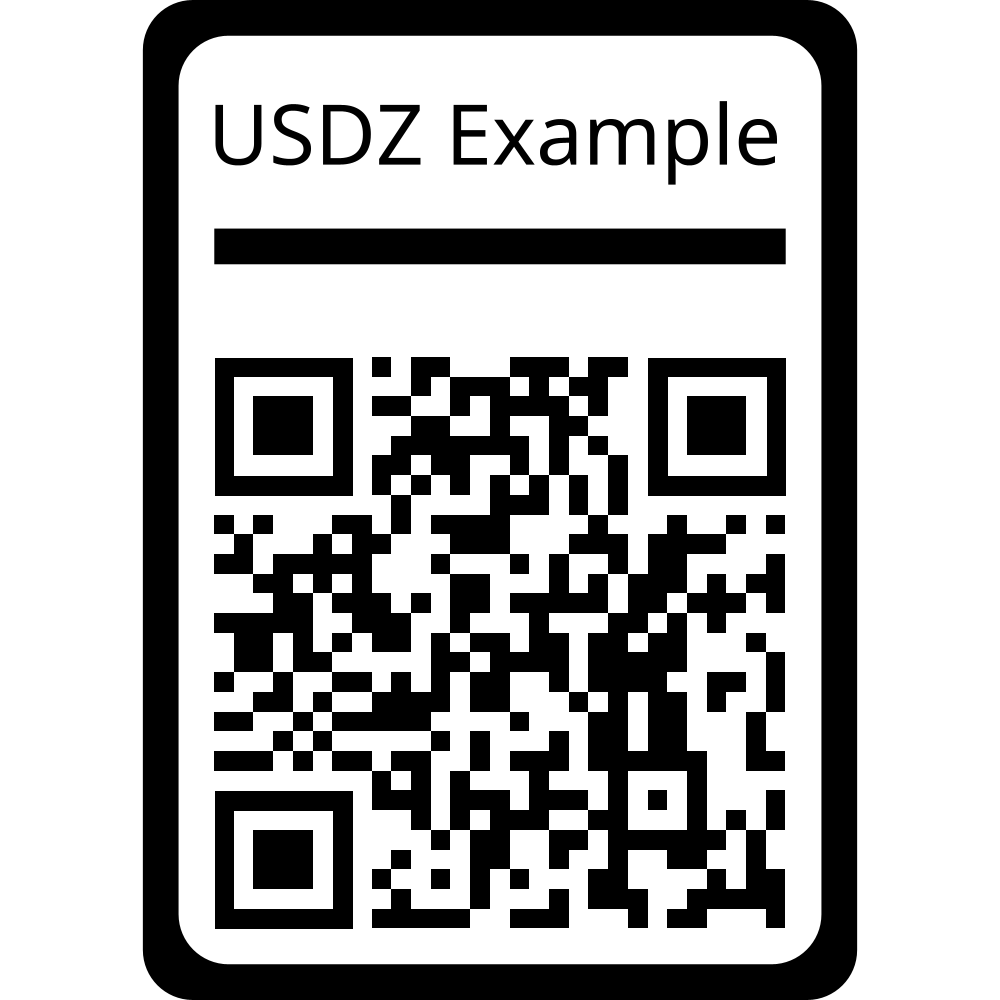
This interactive example works only on iPhone and iPad.
Why use USDZ for a QR Code?
- Preview a 3D QR Code directly on an iPhone or iPad.
- Show a model without requiring specialist 3D software.
- Inspect the QR Code before 3D printing or using it in another project.
- Present a QR Code as an interactive 3D object.
- View the design in augmented reality on supported devices.
How to open a USDZ file on an iPhone or iPad
After downloading the file, tap it in Safari's download list or open it from the Files app. The model opens automatically in Quick Look.
Drag to rotate the model and pinch to zoom. When augmented reality is available, Quick Look can also offer an option to view the QR Code in your surroundings.
How to create a USDZ QR Code
- Open the 3D QR Code Generator.
- Enter the URL or information your QR Code should contain.
- Customize its appearance and 3D settings.
- Select USDZ as the download format.
- Generate and download the model.
- Open the file on your iPhone or iPad.
Create your USDZ QR Code
Ready to try it? Create and download your own USDZ model with our Free 3D QR Code Generator.